 KinPing
KinPing is a family check-in app built around one small daily question. You ask it, they answer with one tap, and you both get on with your day. There is no GPS tracking, no alarms, and no "I'm OK" button to forget. Here is how it works, from the first screen to the Today screen.
Step 1: Add a person
Open the app and add the person you want to check on. KinPing has ready-made question sets for mom, dad, son, daughter, wife, husband, friend or staff, and a "someone else" option for anyone else. Both people choose to connect. You cannot quietly add someone and start watching.
Step 2: Pick the questions and a time
Next you tick the questions you want to ask. The ready-made list covers everyday things:
- Did you eat?
- Took your medicine?
- Slept well?
- Drank enough water?
- Went for a walk?
- Reached home safely?
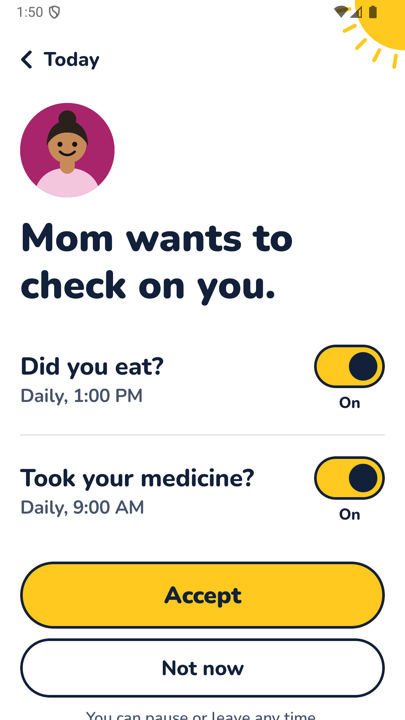
Each question has its own time. "Did you eat?" might go out daily at 1:00 PM, "Took your medicine?" at 9:00 AM. "Reached home safely?" can be set to "When she goes out" instead of a fixed hour. If none fit, tap Write your own question. See the full list on daily check-in questions for family.
Step 3: They approve once
This is the part most daily check-in apps skip. Before a single question goes out, the other person sees a screen like the one above: "Mom wants to check on you," with each question next to a switch. They can turn a question off, accept the rest, or tap "Not now." They approve each question once. Nobody is asked something they did not agree to.
Step 4: The question arrives at their local time
Time zones are handled for you. A question set for 1:00 PM arrives at 1:00 PM where they are, not where you are. It arrives in one of two ways:
- In the app, if they have KinPing installed.
- As a link in WhatsApp or SMS, if they do not. The link opens in the browser. No app is needed to answer.
That second option matters for parents who do not want another app or simply prefer messages.
Step 5: One tap to answer
The answer screen is as simple as it looks. The question sits at the top in large type, then three big buttons:
- Yes
- Not yet
- Later
Under the buttons are two optional extras: Add a note and Add a photo. "Yes" with a photo of lunch says more than a paragraph. "Not yet" with "waiting for the pharmacy" tells you what is going on without a phone call. Most days a single tap is enough.
Step 6: You see it on Today
Your Today screen shows every person you check on and where each question stands. A yellow tick means answered, with the time and any note. An empty circle means no answer yet. A clock means they tapped "Later." A bar at the top tells you if a question is waiting for you, because check-ins can go both ways.
Reminders and history
KinPing sends reminders for questions waiting for you. A reminder is a nudge, not an alarm.
Each person keeps up to 14 days of history. You can look back at the week and see how the days went. It is enough to start a gentle conversation, and no more.
Pause, leave, report, block
Either side can change their mind at any time:
- Pause the questions for a while, for example during a hospital stay or a holiday.
- Leave the connection entirely.
- Report a connection.
- Block someone.
The person being asked always has a way out.
Signing in, privacy and cost
Sign in with Google or Apple. Your email is never shown to the people you connect with. There is no GPS tracking and no hidden mode. You can delete your account from Settings at any time; details are on the privacy page.
KinPing is free with a small Google banner ad. There is nothing to pay. The app is for ages 13 and up.
One honest limit
KinPing is not an emergency service. A missing answer may just mean a phone is off or someone was busy. If you are worried about someone's safety, call them or call for help. KinPing is for the ordinary days in between, when a single "Yes" is all you need to hear.
Getting started
Android is in closed testing on Google Play. Open the opt-in link, tap "Become a tester," and install the app. iPhone is coming to the App Store.
Updated 2026-11-05.